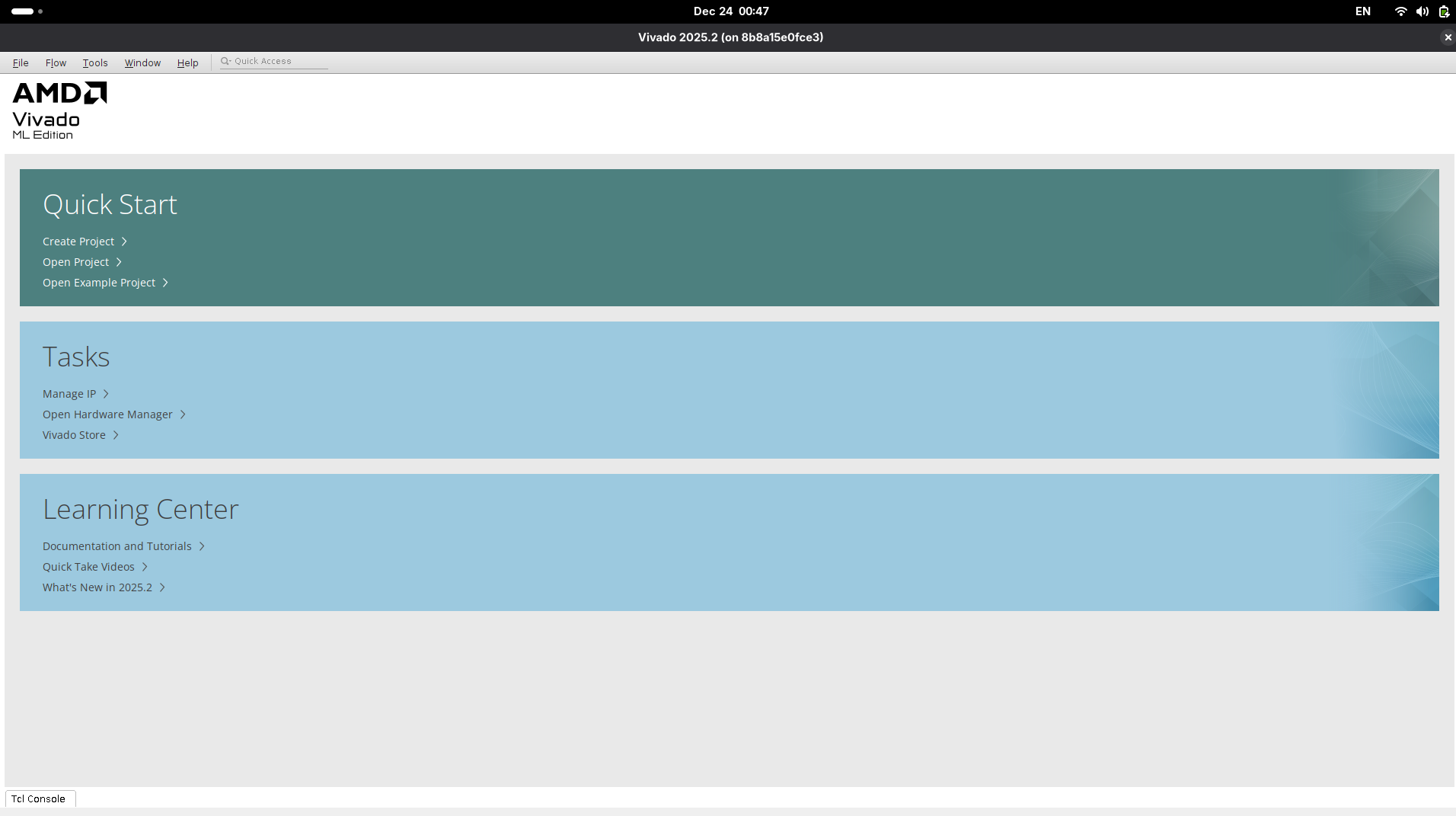
How to set up Vivado in a Docker container (Arch Linux host)
I wanted to install AMD(Xilinx) Vivado in my machine for my work on FPGAs. However, my local machine uses Arch Linux which is not officially supported by AMD right now. Installing this natively would cause troubles with dependencies, and virtual machines would be way too massive. Installing Vivado inside a Docker container, starting from an Ubuntu image, seemed to be a good option.
There were already some Docker images with Vivado installed out there, but all they were older versions. So I tried building up an image with the latest version Vivado (2025.2) from scratch, and documented the process in this post.
Prepare web installer
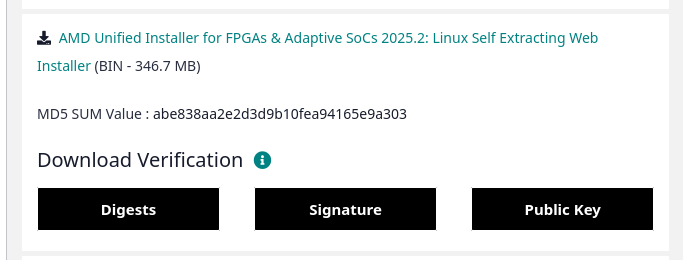
First, download the self-extracting web installer from the Xilinx download page. The Linux version installer is a large binary file.
Creating a container
Now let's make the container. The Docker container, by default, is not connected to any display device. Because both Vivado and its installer are GUI apps, we need to configure the display for the container.
The first command allows the user 'docker' to access to the X host (display server) of the local machine.
The second command creates a new Docker container from an Ubuntu image.
What do those flags mean?
- -e: I passed the environment variable DISPLAY from local machine to docker container.
- -v: I mounted the X socket directory of the local machine to docker container's filesystem.
- --name: I named the new container amd_fpga.
After this, you will be able to run a GUI app inside the container, and forward the graphic output to your local machine's display. You can test by running xclock or xeyes:
Vivado installation
Copy the installer binary into the container, install dependency in the container, and then run the installer binary to go through a regular installation process.
After installation is complete, move to the Vivado directory and run the script to install dependencies.
Also, we should set up locale inside the container for Vivado to work properly.
Then, the program binary (./bin/vivado) should run properly.
Make image and 'launch' script
Let's make the image that contains this Vivado installation. (note that the image will be huge, taking up some tens of gigabytes)
Now, back to the host machine. running the following command automatically runs the container and mounts my working directory(~/devel in my case) of host machine inside the container.
Finally I made a shell script to automate launching the program. (start container -> execute Vivado -> stop container).
vivado.sh
Now we're ready to enjoy our Vivado running in the Docker container.